
How to Put Text Behind an Object in a Photo
The thumbnail look without Photoshop: put your words between the photo and a cut-out of the subject, and pick a font that still reads when half of it is hidden.

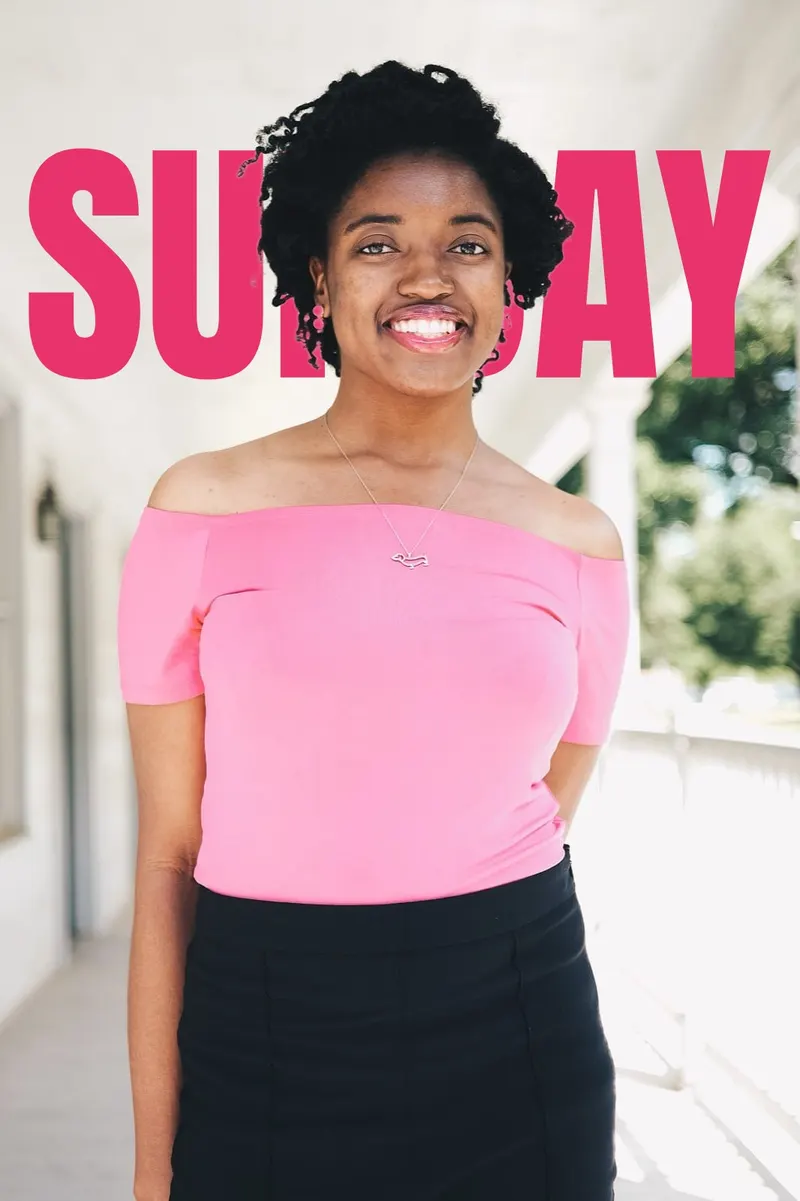
Text behind an object is the look you see on YouTube thumbnails, magazine covers and event posters: a big word sits in the background, and the person or object in the photo stands in front of it, covering part of the letters.
Short answer: stack three layers. At the bottom is your photo, then your words, and on top a cut-out copy of the subject. The free text behind image tool on FindFont does all three for you: add a photo, type your words, pick a font and drag the words into place, then download the image at full size.
How the effect works
The words never really go behind anything. What you see is the photo, with the words drawn over it, and then the subject drawn over the words again. Because the top copy of the subject is cut out, the words show everywhere except where the subject stands.
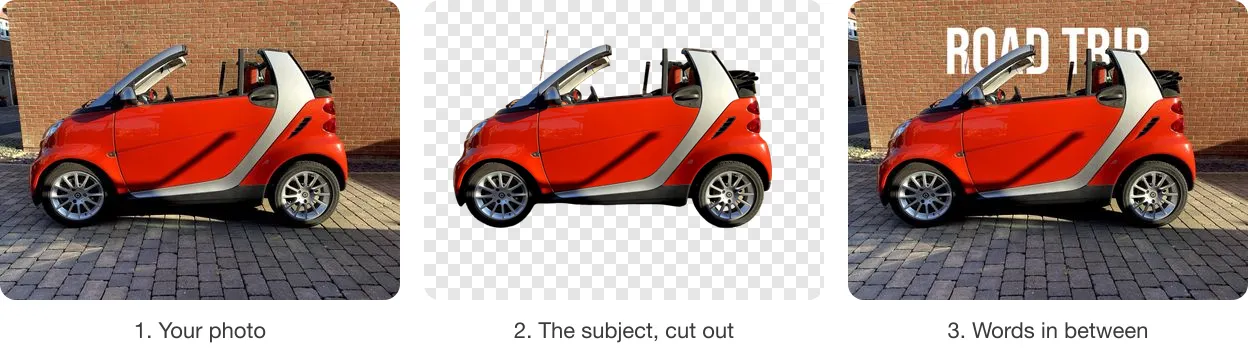
So the only hard part is the cutout. That used to mean careful selections in Photoshop; today an AI model finds the person, pet or product in a few seconds. Everything else is ordinary typography: a word, a font, a size and a colour.
Put text behind an object, step by step
- Add a photo. Open Text behind image and choose, drop or paste a JPEG, PNG or WebP photo of up to 20 MB. No photo to hand? Pick one of the six sample photos.
- Wait for the cutout. The subject is found and cut out automatically, usually in three or four seconds.
- Type your words. Up to three short lines. A name, a place, a date or a title works best.
- Pick a font and a size. Start with one of the suggested heavy fonts, or search more than 2,000 others. Make the words big: the subject only hides part of them.
- Drag the words into place. Drag them until the subject covers part of a word, typically behind a head or the top of a product. The arrow keys move them a pixel at a time, or 10 pixels with Shift.
- Download. Choose JPEG for social media or PNG for the finest detail. The download is your photo's full size, up to 4,096 pixels on the long edge, with no watermark.
The sample photos work without an account. For your own photos, the first 3 each day are free without an account; after that, a free FindFont account gives you up to 20 a day.
Choose a font that survives being half hidden
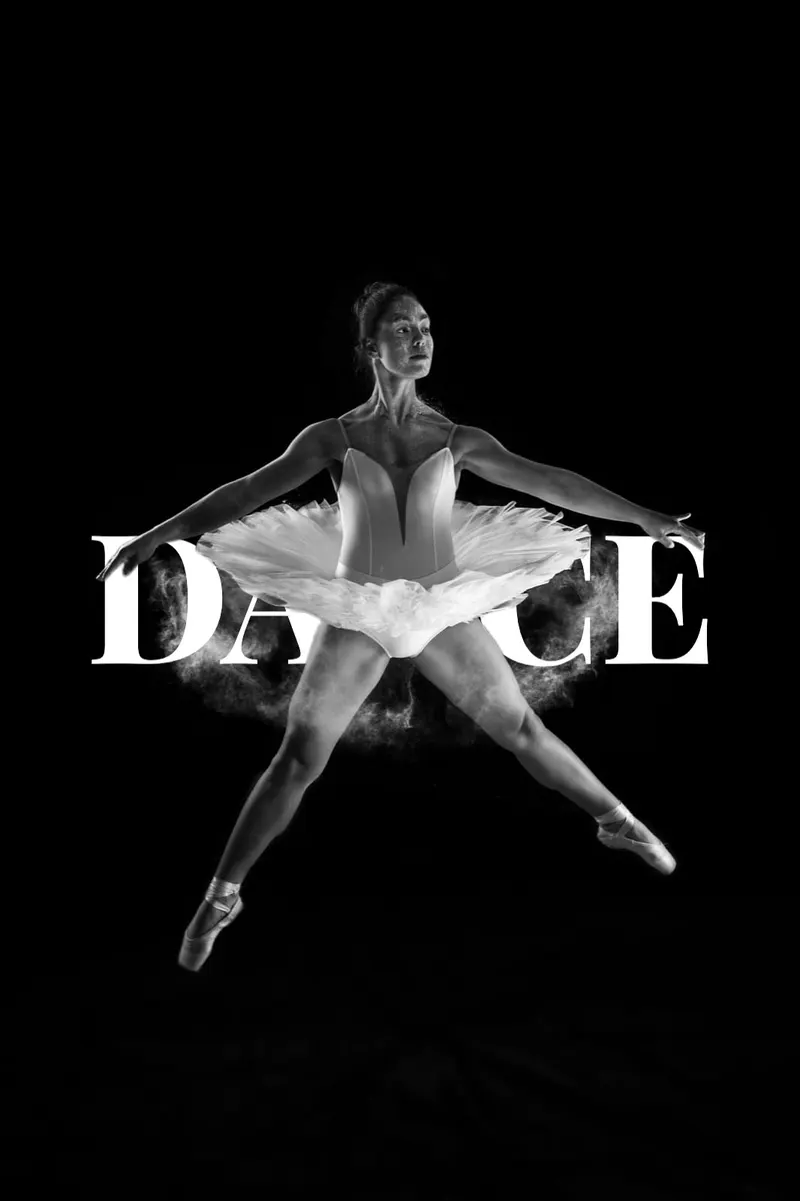
A word that's partly covered has to be recognisable from the letters that are left. That favours heavy weights, simple shapes and capitals. Thin scripts and light weights lose too much when a head covers the middle of the word.
- Anton: tall, condensed capitals. The classic thumbnail look, and it fits long words across a portrait.
- Bebas Neue: clean capitals with even strokes that stay readable when half a word is hidden.
- Oswald: a narrow gothic in several weights, good for two-line titles.
- Montserrat: a wide geometric sans. In ExtraBold, short words look solid and modern.
- Playfair Display: high-contrast serif letters for a fashion or magazine feel.
- Pacifico: a friendly brush script for pets and holiday photos. Keep scripts short and let them overlap only the edge of the subject.
Colour matters as much as the font. Pick a colour that stands apart from the background around the subject, not from the subject itself: a light word on a dark sky, a dark word on a pale wall. On a busy background, a thin outline or a soft shadow keeps the letters readable, and lowering the opacity a little makes the words sit more naturally in the scene.

Which photos work best
- One clear subject. A person, a pet, a car or a product that stands out from its background cuts out cleanly.
- Space around the subject. The words need somewhere to go. Leave sky or wall above the head, or space beside the object.
- The subject in front of the words' position. The effect only shows where the subject overlaps the letters, so the head or the top of the product should reach into the band where the words go.
- A sharp photo. Motion blur and heavy compression make soft edges, and soft edges cut too far into hair and fur.
Fixing common problems
- Part of the subject is missing, such as a hand, a strap or a strand of hair: open Fix the cutout and paint it back with the restore brush.
- A piece of background covers the words, such as part of a table: in Fix the cutout, tap the piece to remove it. Tap again to bring it back.
- The words are hard to read: make them bigger, choose a heavier weight, or add an outline or a shadow.
- You want the words in front after all: turn on Text in front.
- Nothing is cut out: when nothing stands out from the background, as in a landscape, there's no subject to put in front. Try a photo with a clear subject.
How to do it in Photoshop
If you already work in Photoshop, the same three layers take a few minutes:
- Open the photo and choose Select > Subject.
- Copy the selection to a new layer with Layer > New > Layer via Copy (Ctrl+J on Windows, Cmd+J on Mac).
- Add a text layer and set your words.
- In the Layers panel, drag the text layer between the background photo and the copied subject.
- Refine the subject layer's edges with a layer mask where the selection missed hair or fingers.
The browser tool does the same thing without the layers panel, and with the fonts from FindFont's catalogue already loaded.
Only need the cutout?
To use the subject somewhere else, such as on a slide, in a shop listing or in another design, the background remover downloads it as a full-size transparent PNG, with the same tools for fixing the edges.
Put text behind your photo now, free in your browser.