
Free · Samples need no account · Full-size download
Text behind image
Add a photo, type your words and they appear behind the person or object, in any of 2,000+ real fonts.
Add a photo to put text behind
Drop it here, paste it, or choose a file. JPEG, PNG or WebP, up to 20 MB.
No photo to hand? Try one:
Your photo is sent to Cloudflare to cut out the subject. FindFont doesn’t keep it.
How to put text behind an object
Add a photo
Choose, drop or paste a JPEG, PNG or WebP photo of up to 20 MB, or start from one of the sample photos. A person, a pet or a product with some space around it works best.
Type your words
Write up to three short lines. Big, bold words such as a name, a place or a title look best, because the subject only hides part of them.
Pick a font and drag
Choose one of the suggested fonts or search more than 2,000 others, then drag the words into place. Set the size, colour, opacity, outline and shadow until it reads well.
Download
Download a JPEG or PNG at your photo’s full size, up to 4,096 pixels on the long edge, with no watermark.
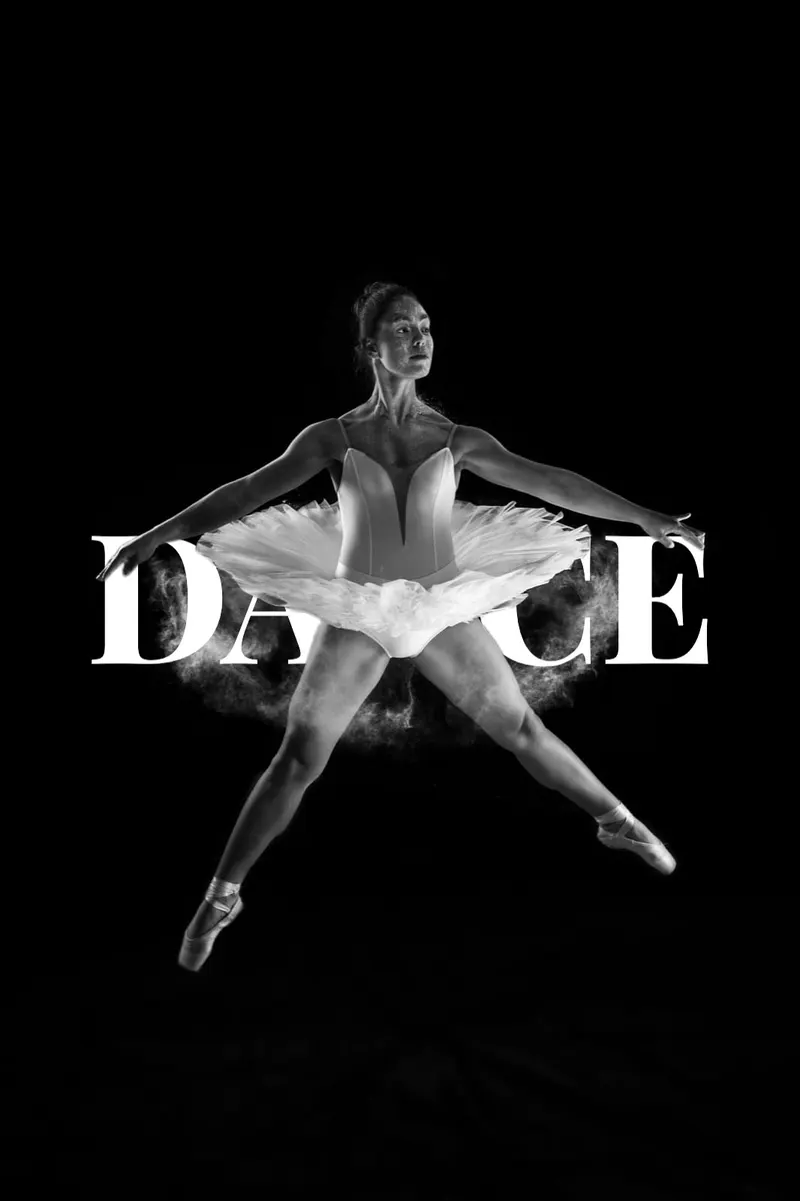
An AI model finds the person or object in your photo and cuts it out, usually in three or four seconds. Your words are drawn over the photo, and the cut-out subject is laid back on top, so the letters disappear behind it exactly where it stands.
If the cutout misses a hand or keeps a piece of the background, open Fix the cutout. Tap a stray piece to remove it, or use the eraser and restore brush. Turn on Text in front when you want the words over the subject instead.
Examples
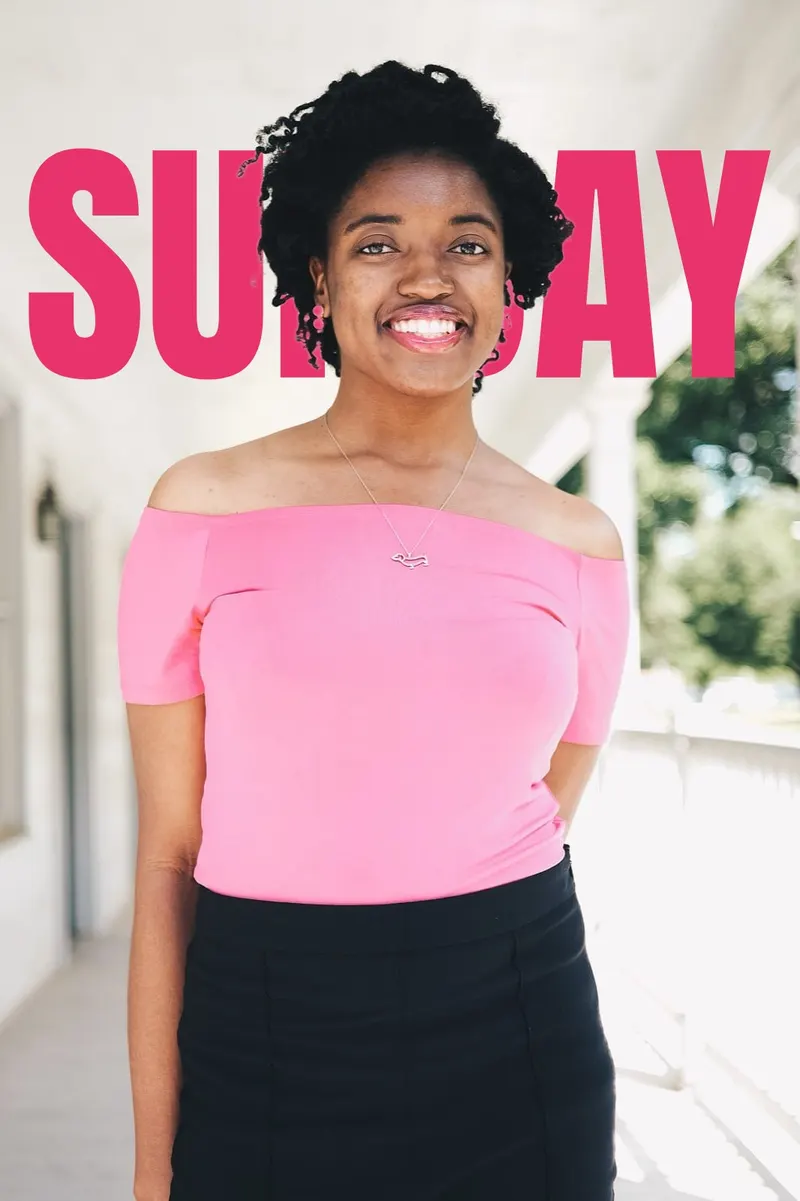

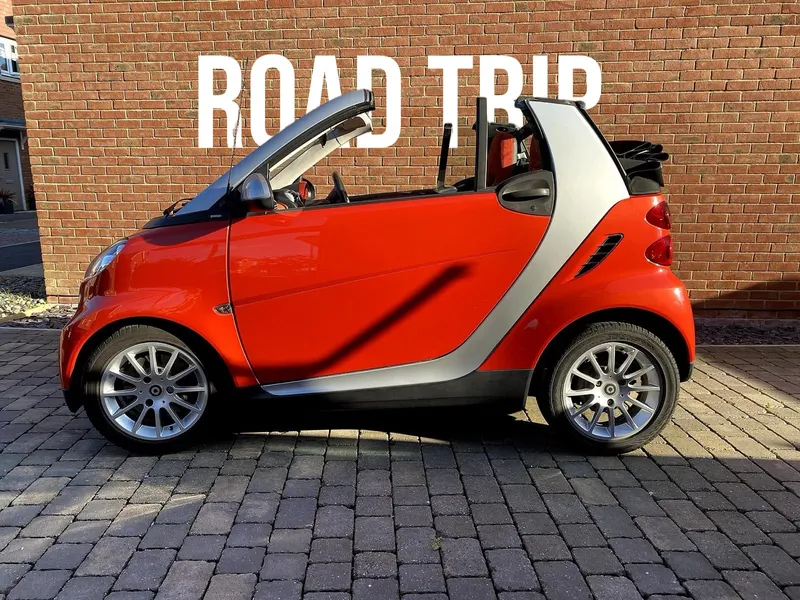
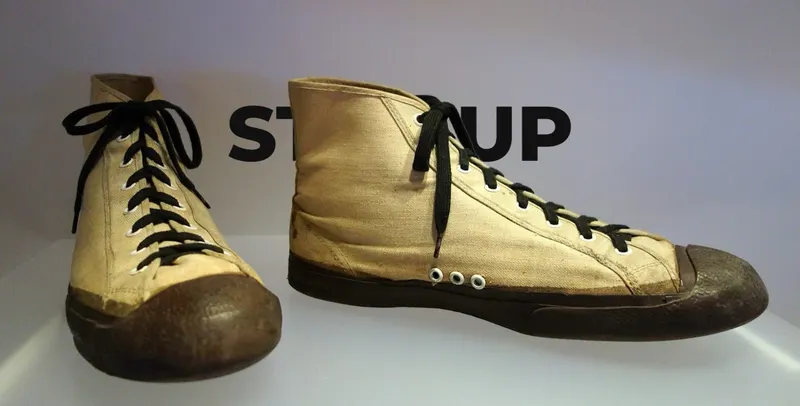
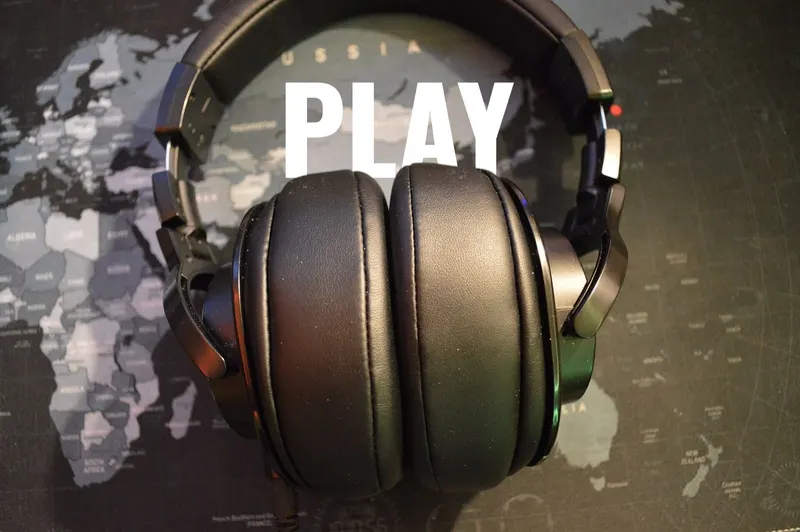
Fonts that work well behind photos
Thick letters work best behind a subject: thin strokes get lost when part of a word is hidden. Short words in a heavy weight, set large, read even when the subject covers a third of them.
Pick a colour that stands apart from the background around the subject, not from the subject itself. A light word on a dark sky or a dark word on a pale wall keeps the effect clear, and a thin outline or soft shadow helps on busy backgrounds.
Anton
Tall, condensed capitals that fill the space behind a person without covering the whole photo. The classic thumbnail look.
Bebas Neue
Clean all-caps letters with even strokes. It stays readable when the subject hides half of a word.
Playfair Display
High-contrast serif letters for a magazine cover or fashion feel, especially in its ExtraBold weight.
Pacifico
A friendly brush script for holiday photos, pets and anything that should feel relaxed.
Oswald
A narrower gothic with several weights, good for longer words and two-line titles.
Montserrat
A wide geometric sans. Its ExtraBold weight makes short words look solid and modern.
What’s different from AI image tools
Your photo isn’t redrawn
AI image generators paint a new picture and can change faces, hands and details. Here your own pixels stay as they are: the subject is cut out and placed back over the words, nothing else changes.
The font is exact
Every letter comes from the real font file in FindFont’s catalogue, so the result matches what you would get in a design app. Generated text often has misspelled or invented letter shapes.
You control every detail
Size, colour, opacity, outline, shadow and position are yours to set, and you can switch to text in front at any time.
What people use it for
YouTube thumbnails
Put a big title behind yourself so your face stays in front, the look most popular channels use.
Posters and event flyers
Set the event name behind the performer or the product and add the details underneath in another app.
Instagram posts and stories
Write a place, a date or a name behind a travel photo or a portrait for a magazine-style post.
Product photos
Put the product name behind the product itself for a shop banner or a launch post.
Only need the cutout?
The background remover downloads the subject as a transparent PNG at full size, with the same tools to fix the edges.
Remove the backgroundText behind image questions
- How do I put text behind an object in a photo?
- Add a photo, type your words and pick a font. The person or object is cut out automatically and placed back over your words, so the text sits behind it. Drag the words into place and download the image.
- Is the text behind image tool free?
- Yes. The download is the full-size image and there’s no watermark.
- Do I need an account?
- Not for the sample photos, and not for your first 3 photos each day. After that, a free FindFont account lets you keep going, up to 20 a day. The limit is shared with the background remover.
- Which fonts can I use?
- Any of the more than 2,000 fonts in FindFont’s catalogue. Six bold fonts are suggested to start, and you can search the rest by name and pick a weight such as Bold or ExtraBold.
- Can I use the image commercially?
- Most fonts here are open-licensed and fine for commercial use. A few are free for personal use only; the tool tells you when you pick one. The photo must be yours or one you have the rights to use.
- What happens to my photo?
- A smaller copy of your photo is sent to Cloudflare, which runs the cutout model, and the cutout comes straight back to your browser. The text and the full-size image are made on your device. FindFont doesn’t store your photo or the result.
- Why is part of the subject missing or covered by text?
- The cutout can miss thin or blurry parts such as hair, fingers or a strap. Open Fix the cutout and paint them back with the restore brush, or tap a stray piece of background to hide it.
- What size is the download?
- The same size as your photo, up to 4,096 pixels on the long edge. JPEG is smaller and fine for social media; PNG keeps the finest detail.
Sample photos (CC0, Wikimedia Commons): person by Joshue McKnight, dog by Cheetyuh, car by TudorTulok, sneaker by Daderot, headphones by P0lykey, dancer by Miguel Salgado.