How to Install Fonts on Windows, Mac and in Microsoft Word
Unzip a font, install it on Windows or Mac, find it in Word, PowerPoint and Google Docs, and fix the problems that stop it showing up.
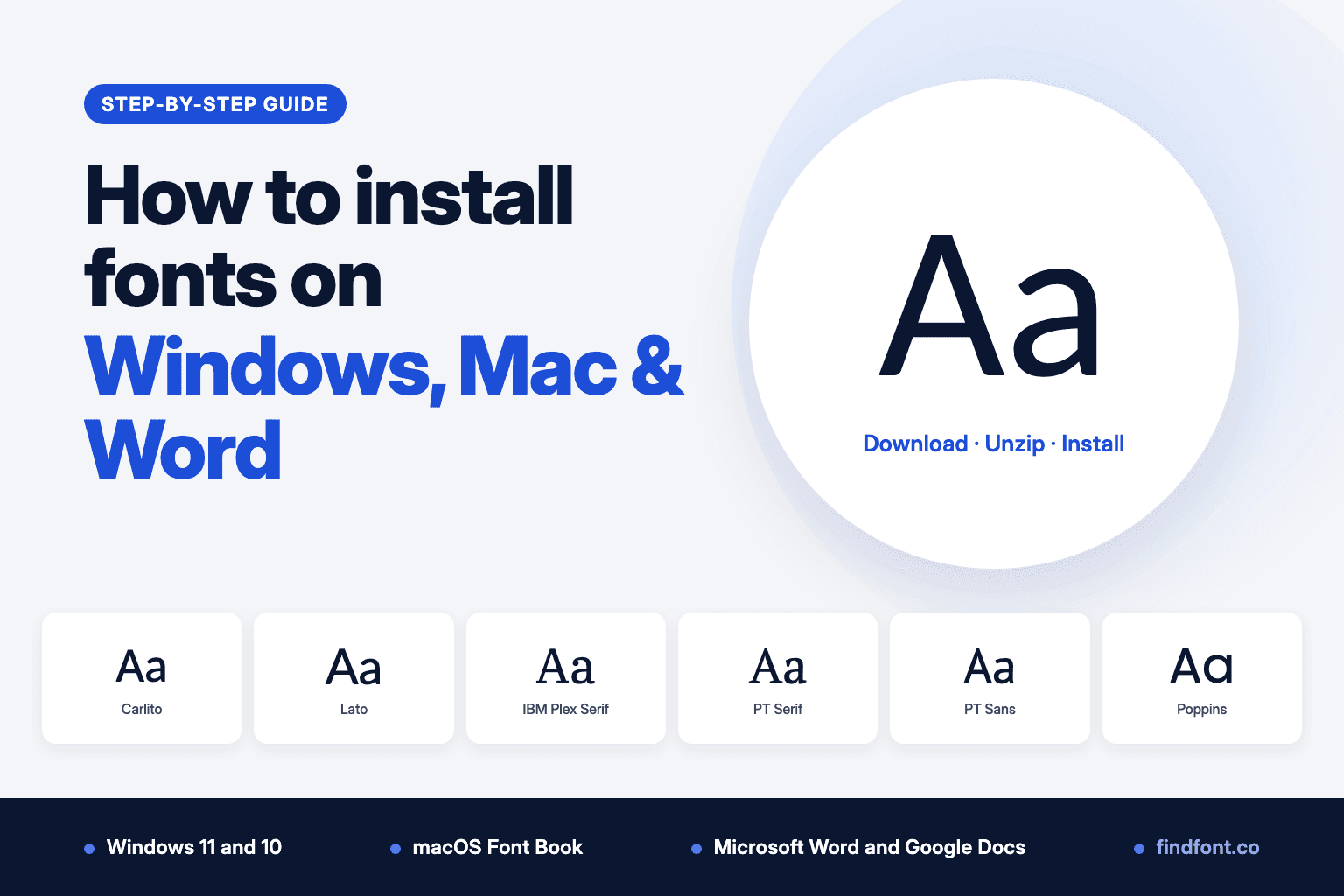
A new font takes about a minute to install. Download it, unzip it, install the font file, then reopen the app you want to use it in. This guide shows each step on Windows 11, Windows 10 and macOS. It also covers where the font appears in Microsoft Word and Google Docs, and what to do when it doesn't.
We checked every step against Microsoft's and Apple's own help pages on 18 October 2026. They're listed at the end.
The short version
- Windows (PC). Extract the .zip, right-click the .ttf or .otf file and choose Install.
- Mac. Double-click the .zip to unzip it, double-click the font file, then click Install.
- Microsoft Word. Close Word and open it again, then pick the font from the font box on the Home tab. The same font works in PowerPoint, Excel and Outlook.
- Google Docs. Fonts installed on your computer don't appear. Add fonts from Google's own list with More fonts.
Step 1: Download a font from findfont
- Find a font on findfont. You can browse by category or compare a few side by side first.
- Before you download, scroll to the License section of the font page. It shows what the licence allows: design projects, websites, PDFs and documents, video, mobile apps and commercial use. Most fonts on findfont use the SIL Open Font License, which allows commercial use.
- Click Download. You get a .zip file named after the font, for example
carlito.zip, in your Downloads folder.
Only install fonts from sources you trust. Microsoft's own guide says to check that you trust where a font came from before you let Windows install it.
Step 2: Unzip the font
Fonts usually arrive zipped. Windows and macOS can't install a font while it's still inside the .zip, so extract it first.
- Windows: right-click the .zip file and choose Extract All…, then follow the prompts. You get a normal folder next to the .zip.
- Mac: double-click the .zip file in Finder. The unzipped folder appears in the same place.
Inside the folder you'll find the font files, ending in .ttf (TrueType) or .otf (OpenType). You may also find a licence file such as OFL.txt and some information files. Install only the .ttf or .otf files. Keep the licence file with the fonts if you share them with someone else.
Files with square brackets in the name
Some fonts come as a single variable font file, with a name like Inter[opsz,wght].ttf. That one file holds every weight, from light to black. Install it like any other .ttf; Apple lists variable TrueType as a supported format. If you need bold and italic to behave predictably in Word, pick a family that ships a separate file for each style, such as Carlito, Lato, PT Serif or IBM Plex Serif.
Step 3a: Install the font on Windows 11 or Windows 10 (PC)
Microsoft supports TrueType (.ttf) and OpenType (.otf) font files. There are three ways to install one.
Option A: right-click (fastest)
- Open the folder you extracted.
- Right-click the .ttf or .otf file and choose Install. On Windows 11, if you don't see Install, choose Show more options first.
- To make the font available to every account on the PC, choose Install for all users instead.
- If Windows asks whether to allow changes, check you trust the file and choose Yes.
To install a whole family at once, select all the font files, then right-click and choose Install.
Option B: preview first
- Double-click the font file. It opens in the font preview window.
- If it's the font you want, select Install at the top.
Option C: drag into the Fonts folder
Windows keeps fonts installed for all users in C:\Windows\Fonts. Dragging font files into that folder installs them for everyone on the PC.
Check it worked. Open Settings > Personalization > Fonts. Your font should be under Available fonts, where you can search for it and preview it.
Step 3b: Install the font on a Mac
macOS installs fonts with the Font Book app. It accepts TrueType (.ttf), variable TrueType (.ttf), OpenType (.otf) and font collection (.ttc) files.
Option A: double-click (fastest)
- Double-click the font file in Finder.
- Click Install in the window that opens.
Option B: drag into Font Book
Open Font Book and drag the font files into its window, or onto the Font Book icon in the Dock.
Option C: from the menu
In Font Book, choose File > Add Fonts to Current User and select the font files.
Font Book checks each font for problems while it installs. If you already have a font with the same name, it asks whether to keep both, skip the new one or replace the old one.
Just you, or everyone on the Mac? By default, fonts install for the current user only, in ~/Library/Fonts. To install for every account on the Mac, open Font Book > Settings and set the default install location to All Users. Fonts then go to /Library/Fonts, and macOS asks for an administrator password. On older versions of macOS this menu may be called Preferences.
Step 4: Use the font in Microsoft Word
Word doesn't install fonts itself. It uses the fonts installed on your computer, so once a font is installed it shows up in Word, PowerPoint, Excel and Outlook.
- Close Word completely and open it again. Word builds its font list when it starts, so a font installed while Word was open may not appear until you restart it. On a Mac, choose Word > Quit Word; closing the window isn't enough.
- Select some text.
- On the Home tab, click the font box and start typing the font's name, for example Carlito. Pick it from the list.
The steps are the same in Word for Windows and Word for Mac. Microsoft's guide for Microsoft 365, Office 2024 and Office 2021 gives the same two steps for both. Install the font in Windows or macOS, then open the Office app.
Using Word in a web browser? Microsoft's install guide covers the desktop apps. For a custom font, open the document in the desktop version of Word.
Fonts you see in Word but never installed
If you have Microsoft 365, Word also offers cloud fonts. Microsoft hosts these and downloads them when you first use one, so documents look the same for other Microsoft 365 users without you installing anything. Your device needs to be online. On Windows, cloud fonts depend on a privacy setting: File > Account > Manage Settings (under Account Privacy) > Optional connected experiences.
Sharing a Word document that uses your font
A font you install only exists on your computer. Anyone who opens your document without that font sees a substitute, usually Times New Roman or their default font. You have three options:
- Save as PDF when the reader doesn't need to edit the file.
- Embed the font in the document. In Word for Windows, go to File > Options > Save and tick Embed fonts in the file. Embed only the characters used in the document makes the file smaller but makes editing harder. Do not embed common system fonts leaves out fonts most people already have.
- Send the font with the file, so the recipient can install it too. For open-licence fonts this is allowed; include the licence file.
Not every font allows embedding. A font's maker can mark it as installable, editable, preview and print only, or no embedding. To check on Windows, open Control Panel > Fonts, select the font and look at Font embeddability.
Using the font in Google Docs
Google Docs runs in your browser and uses its own font library. Google's help only describes adding fonts from that library, with no way to upload a font file, so a font you install on Windows or a Mac won't appear in Docs.
To add more fonts to Docs:
- Open the Font menu in the toolbar and choose More fonts. Or press Alt + / (Option + / on a Mac), type
more fontsand press Enter. - Search for the font by name and select it.
- Click OK. It's now in your font list for every document.
Many of the open-licence fonts on findfont, such as Lato, Merriweather, Montserrat and Roboto, come from the Google Fonts library, so you can often find the same family in More fonts.
Troubleshooting
There's no Install option when I right-click. You're probably right-clicking the .zip file. Extract it first (Step 2), then right-click the .ttf or .otf file inside.
Windows won't install the file. Check the file ends in .ttf or .otf; Microsoft's guide covers only those two types. Web font files (.woff, .woff2) are for websites and aren't meant to be installed on a computer.
The font is installed but Word doesn't show it. Quit Word fully and reopen it. Then type the font's name into the font box rather than scrolling. Check the font appears in Settings > Personalization > Fonts on Windows, or in Font Book on a Mac. Microsoft also notes that some apps don't support custom fonts, so trying a second app tells you whether the install worked.
Another user on the same computer can't see the font. It was installed for your account only. On Windows, use Install for all users. On a Mac, change Font Book's default install location to All Users and install it again.
Bold or italic looks wrong in Word. Install every file in the folder, not just the Regular file. If the family is a single variable font file, try a family with separate style files (see Step 2).
My Mac shows duplicate fonts, or a font behaves strangely. In Font Book, choose File > Resolve Duplicates. To check a font for damage, select it and choose File > Validate Selection. Fonts that fail show a red icon; tick them and click Remove Checked.
The person I sent the document to sees a different font. They don't have the font installed. Embed it, send a PDF, or send the font (see Step 4).
A font doesn't appear in Google Docs. That's expected. Docs doesn't use fonts installed on your computer. Use More fonts instead.
How to remove a font
- Windows: Settings > Personalization > Fonts, select the font, open the … options menu and choose Uninstall.
- Mac: in Font Book, select the font, press Delete and confirm with Remove Fonts. The font goes to the Trash. To switch a font off without deleting it, choose Edit > Deactivate. Built-in system fonts can't be removed.
Free fonts worth installing for Word and everyday documents
All of these are on findfont under the SIL Open Font License, which allows personal and commercial use. Each one downloads as separate files per style, so bold and italic behave as expected in Word.
- Carlito: metric-compatible with Calibri. A document set in Calibri keeps the same line and page breaks in Carlito.
- Lato: a warm, readable sans-serif with many weights. Carlito is derived from it.
- IBM Plex Serif: a sturdy serif for reports and letters.
- PT Serif and PT Sans: a matching serif and sans-serif pair from ParaType.
- Poppins: a geometric sans-serif for headings, slides and flyers.
For fonts picked for reports, presentations and logos, see our guide to free business fonts. For more places to download fonts safely, see the best places to download free fonts and where to find free fonts online. Not sure which font to pick? Start with how to choose a font or our list of free fonts cleared for commercial use.
FAQ
Do I need to restart my computer after installing a font? No. Restart the app you want to use it in, such as Word.
Are fonts on findfont free to use commercially? Most are. Each font page has a License section that shows what's allowed. Fonts under the SIL Open Font License can be used in commercial work, including logos, printed material and documents.
Where are fonts stored?
On Windows, fonts installed for all users are in C:\Windows\Fonts; fonts installed just for you are kept in your user profile. On a Mac, fonts for the current user are in ~/Library/Fonts and fonts for all users in /Library/Fonts.
Can I use .woff or .woff2 files in Word? No. Those are web font formats. Download the .ttf or .otf version.
Sources
- Microsoft Support: Manage Fonts in Windows (Windows 11 and 10)
- Microsoft Support: Download and install custom fonts to use with Office
- Microsoft Support: Add a font (the
C:\Windows\Fontsfolder) - Microsoft Support: Zip and unzip files
- Microsoft Support: Benefits of embedding custom fonts
- Microsoft Support: Cloud fonts in Office
- Apple Support: Install and validate fonts in Font Book on Mac
- Apple Support: Change Font Book settings on Mac
- Apple Support: Remove, deactivate, or activate fonts in Font Book on Mac
- Apple Support: Zip and unzip files and folders on Mac
- Google Docs Editors Help: Change how paragraphs & fonts look
- Carlito project: googlefonts/carlito on GitHub